
Browser gaming Practical guide
Where did my browser game save go? Check these things first
An unfinished puzzle can survive a refresh and still be missing on another device. Here is how local saves work, what to check, and what to leave alone.
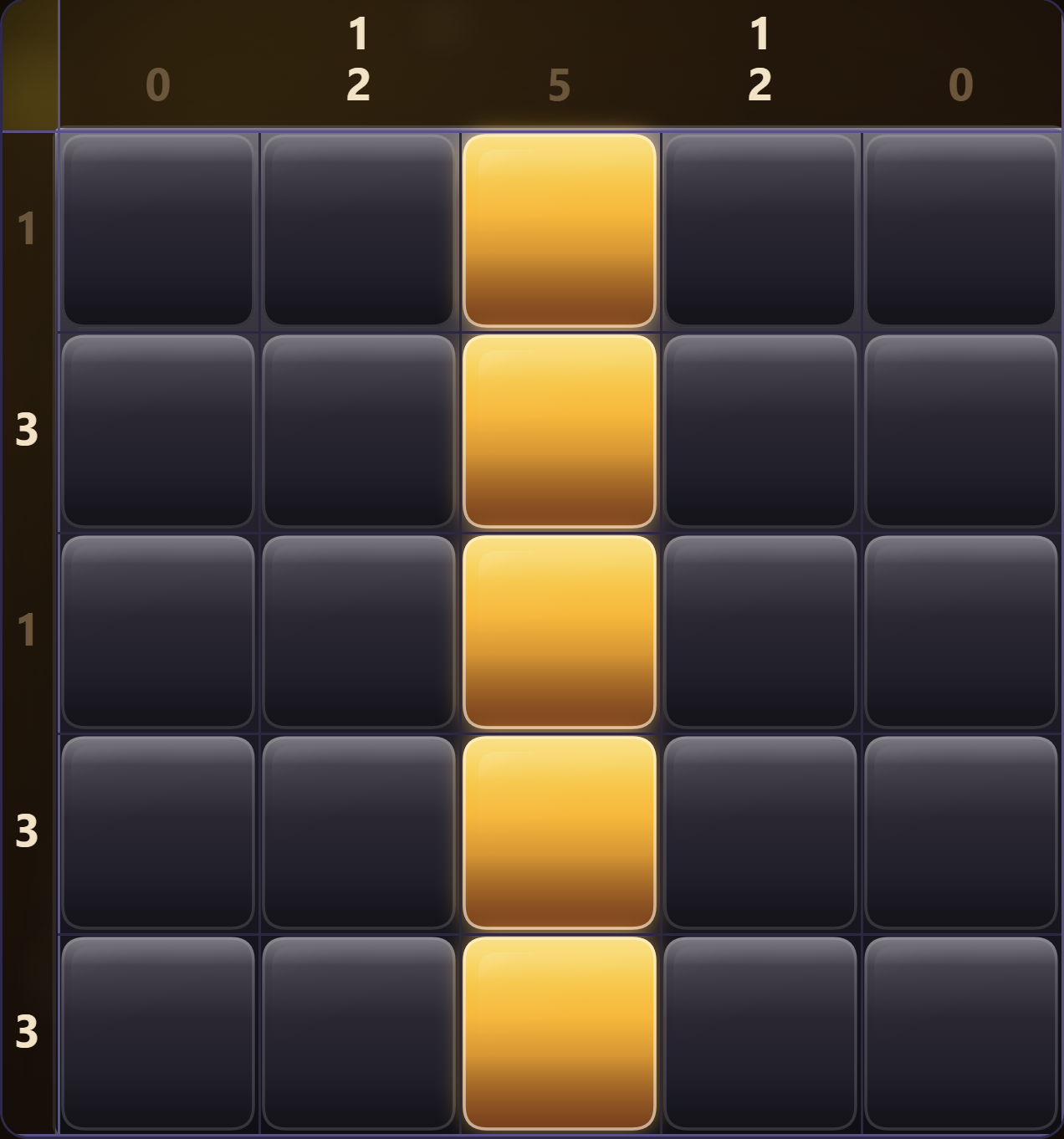
If your browser game opens with an empty board, check the browser, profile and website address you used last time before pressing Reset or clearing site data.
Your progress may still be in the original browser or profile. Opening the same game somewhere else doesn’t tell you whether that save has been deleted.
This guide uses Lantern Nonogram to explain local saves and the checks you can make without deleting anything. Recovery depends on how the game saves and whether a copy of your progress still exists.
What a refresh test actually tells you
For this article, we opened Candle, the first puzzle in Lantern Nonogram, and filled its centre column. We then reloaded the page and reopened the board. The five filled cells were still there. The screenshot above shows that restored state, rather than a recreation made for the article.
The reload kept our unfinished board in the same browser. It did not test another device, a different browser or recovery after clearing site data.
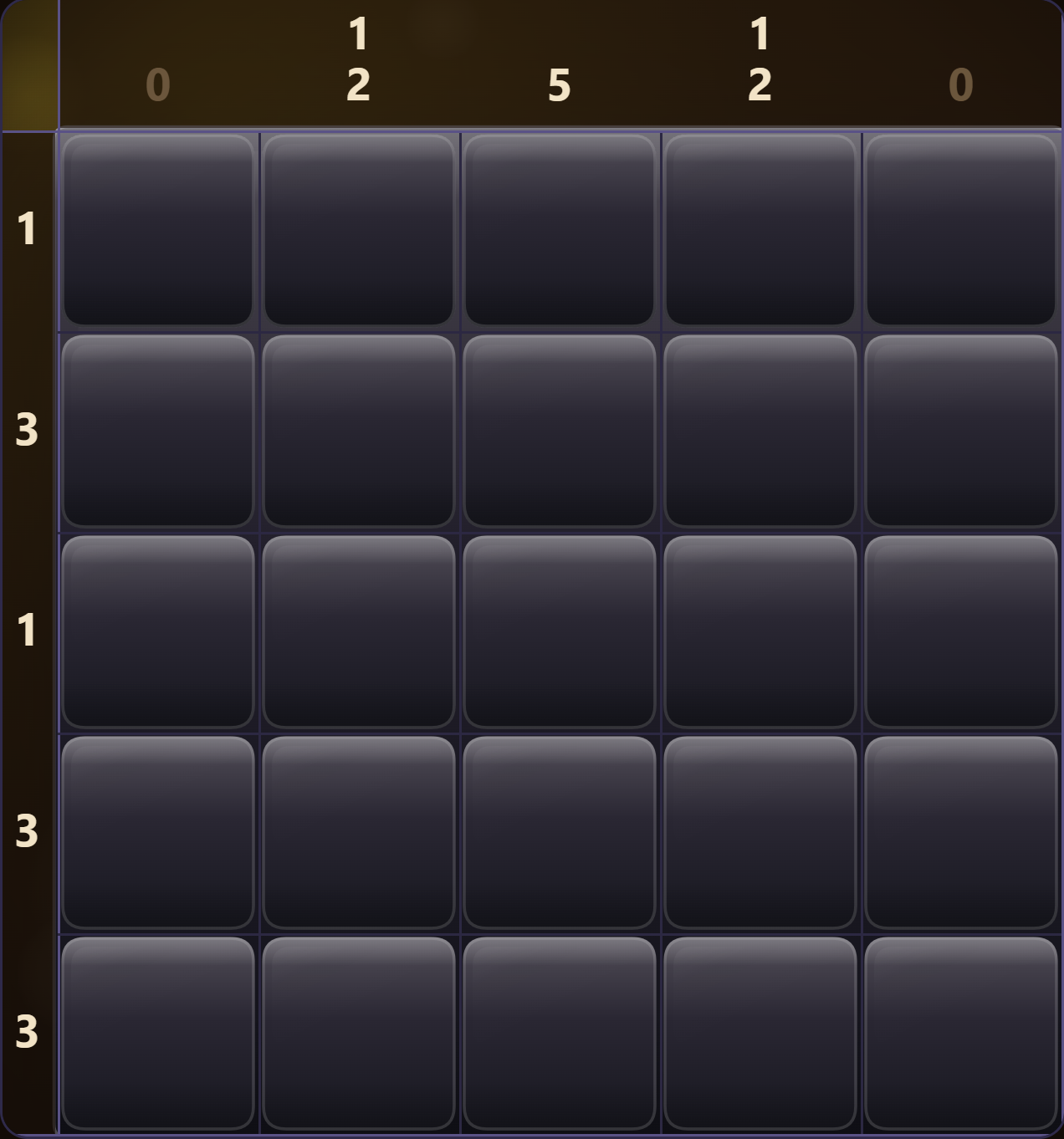
If you want to try that check yourself, use a new puzzle or a harmless setting change. Avoid experimenting on the only copy of a long run you care about. A reload check is useful when everything appears healthy; it is not a reason to keep refreshing a game that is already showing a save error.
A local save belongs to a particular website
One common storage mechanism is called localStorage. It lets a website retain small amounts of information between browser sessions. Its data belongs to an origin, which includes the address’s scheme, host and port. Even HTTP and HTTPS versions of an address have separate storage. Those boundaries are documented in MDN’s localStorage reference.
Open the bookmark or history entry from your earlier session. A preview site, subdomain or another site hosting the same game may have separate storage. Our public address is dynamicarcades.com.
Page paths work differently: the catalogue and game pages on the same origin can use the same storage. What gets saved still depends on the game.
Check the browser and its profile
Start with the browser icon you normally use. Opening a link from a messaging app may take you somewhere different from the browser you used last night. Check the actual app and address bar rather than relying on the game looking familiar.
Then look at the browser profile. A work profile and a personal profile are separate places to look. Mozilla’s documentation gives a useful example: different Firefox installations can have dedicated profiles, so opening a new installation can show different data while the old profile still exists. See Firefox’s explanation of dedicated profiles.
Return to the original browser and profile before changing either. If your progress is there, leave it intact while checking backup options. Copying browser folders or editing storage entries can put that remaining save at risk.
Also separate a browser account from a game account. Seeing your name on the browser’s toolbar is not proof that this particular game’s progress is being uploaded. Look for a save or sync feature provided by the game or website itself.
Private windows change the expectation
A private window can run a game normally while keeping its storage temporary. According to MDN’s Web Storage guide, private browsing treats local storage like session storage and discards it when the private session ends.
If the only copy of a puzzle is still open in a private session, closing that session is therefore a poor troubleshooting step. Check the game’s own export or account options first, if it offers them. A screenshot can preserve the visible board for reference, but it is not a complete save file and will not automatically restore progress.
Use a normal browser window for games you want to return to. Local storage can still be lost, so check whether the game offers a separate backup.
Do not clear site data as your first fix
“Clear cookies and try again” is common advice for website problems. It deserves care when the thing you want to preserve is stored by that website. Browser settings may group cookies with other site data, and deleting that data can remove information the game needs. Chrome’s help explains the available controls in its guide to managing cookies and site data.
Before deleting anything, write down what you are seeing. Is one puzzle missing, or every game? Are completed levels still marked? Did sound settings also reset? Does the same page behave differently in the original profile? These observations help distinguish a single game’s problem from a wider change, without destroying evidence along the way.
Storage also has browser-specific limits and persistence rules. MDN describes these in its storage quotas and eviction guide. The useful conclusion for a player is modest: a local save is not an unconditional promise of permanent storage. Do not assume that leaving a tab open forever is a backup strategy.
Local progress and cloud saves are different features
Dynamic Arcades has account features for supported game progress. If you use them, check the account page and the game’s save status while you still have access to the device holding your progress. Do not infer a successful upload solely from having created an account or from seeing a local board resume.
We captured these screenshots while signed out. They show local saving only; we did not test cloud sync or account recovery in this session.
An explicit export feature, where a game provides one, is another option. Keep the exported file somewhere you can find again, and follow that game’s restore instructions. There is no universal browser-game save format, and a screenshot of a victory screen is not a substitute for one.
If it is still missing
Collect a short, useful report: the game name, approximate last successful session, browser, device, original address, and what progress is missing. Mention any recent profile change or site-data cleanup. A screenshot of the current board can help, as long as it contains no private account information. On this site, you can send those details through feedback.
If local data was deleted and there’s no backup, the save may be gone. Check the original browser and profile before concluding that it is.
If you find your progress, check the game’s backup options before switching devices. Starting Candle from scratch? Our nonogram guide walks through its opening moves.
Checked on 23 September 2026 using Lantern Nonogram v2 in desktop Chrome. The observed result covers a normal reload and restored partial board, not private-session recovery, cloud sync or every browser’s storage policy. Browser documentation is linked beside the claims it supports.