
Strategy Game guide
Tidegable: join houses into a terrace or add a storey
Use Tidegable’s House tool to build sideways or upwards. See how neighbouring houses join, how a second click adds a floor, and how Undo changes it back.
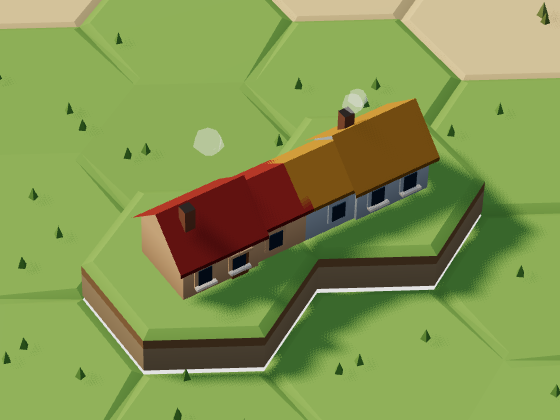
With House selected in Tidegable, clicking an empty hex builds another house. Clicking a house that’s already there adds a storey instead. To make a terrace, build beside the first house rather than clicking it again.
This example uses Sandbox, where you choose your pieces freely. On the title screen, choose Build my town under Sandbox. Charter is the separate scored mode with a hand of pieces and targets; you don’t need it to try these building shapes.
Keep House selected
Open the Build tab and select House. The outlined House button tells you which piece the next click will use. Leave Brush off for this one-click-at-a-time example.
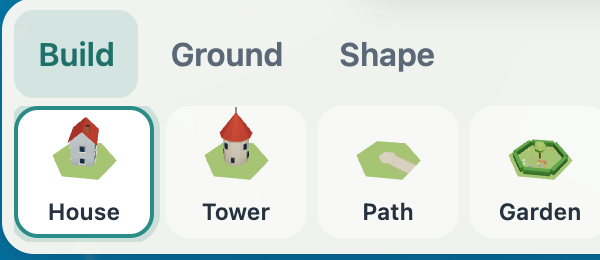
A different selected tool changes what your click does. Check that outline before trying to make a house taller.
Build beside the house to extend the row
Find an empty hex sharing an edge with your house, at the same ground height, and click it. The new building joins its neighbour without a separate connect command.
In the opening picture, the red-roofed house sits on the left and the new ochre-roofed house sits on the right. Their joined roofs and walls span two hexes. Both plots sit on the same raised patch of land.
Ground height matters here. Adjacent houses on different ground levels won’t make this terrace connection. For a first attempt, use two neighbouring plots on the same flat patch instead of reshaping the island.
Click the existing house to build upwards
Keep House selected and click the red-roofed house’s hex again. In this example, the building gained a second floor while the ochre-roofed neighbour stayed one storey tall. No third plot was used.
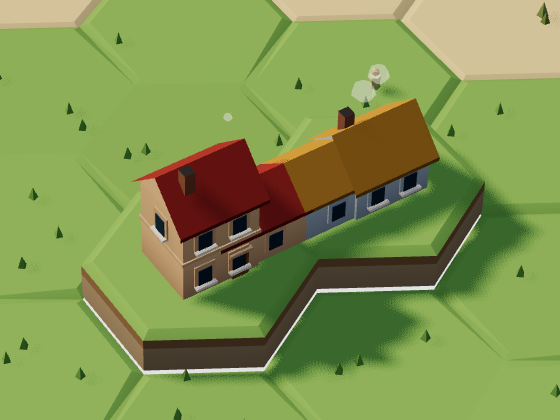
Look at the windows and roofline, not just the silhouette of the island. Adding a storey changes the building; it isn’t the same as raising the ground with a Shape tool.
Use Undo to compare the two shapes
Press the curved Undo arrow at the top left of the game’s toolbar. After the extra floor in this example, Undo returned the red-roofed house to one storey and left both houses in place. Redo, beside it, restored the upper floor.
Try the two versions before extending the row. A third house on a neighbouring plot gives the terrace more length; another click on an existing house gives it height. Keep an eye on the selected tool and the hex you’re pointing at, and those two choices stay separate.